

With great certainty, we have nothing to hide from intelligence agencies. But what about hackers who steal passwords from our emails? And what about industrial espionage? The ordinary Otto email user is a major part of the surveillance scandal.
Offline is also possible
Let’s at least try to buy a letter envelope and pay more for postage when sending a regular offline letter instead of simply sending a postcard. That way we close our eyes when sending emails. So let’s start encrypting and as I discovered for myself in an experiment, it’s not at all difficult:
Windows + Thunderbird
Install Gpg4win
First, we load the software Gpg4win down, we have the software with GnuPG here, which later encrypts our emails. GnuPG was originally funded by the Federal Ministry of Economic Affairs and Labour (BMWA) and the Federal Ministry of the Interior (BMI). unsupported.
When installing it, be sure to select the GpgOL component. This is a plugin for Outlook (unfortunately only for 2003 and 2007).

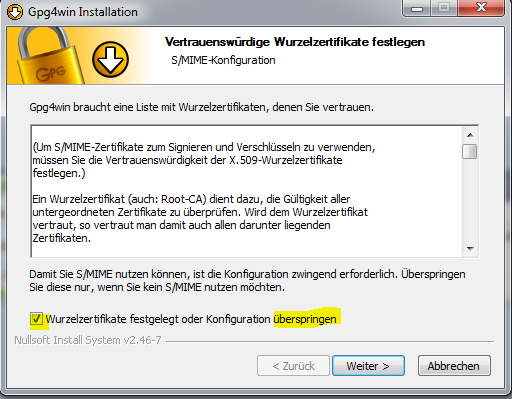
At the end of the installation, briefly confirm that we do not want to install root certificates:
Install Enigmail
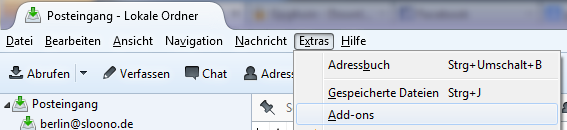
Now we open Thunderbird and install the Enigmail add-on.
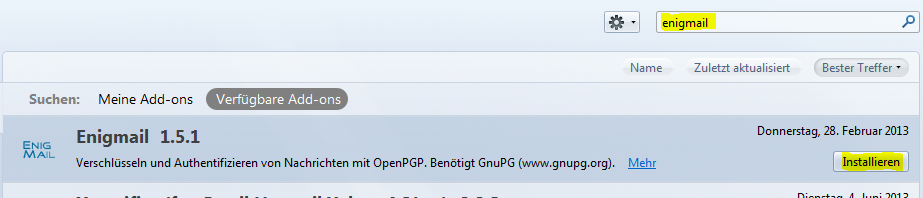
Search for Enigmail and install the add-on.
After that, restart Thunbird once.

Create keys
The whole system basically works with two keys. Each person has a public key that they can share with acquaintances and strangers, publish on the website, embed into their email signature, or whatever else. With this public key, everyone who sends you an email can then encrypt the text. However, only the owner of the private key can read this encrypted text. Therefore, you should not share the private key/password, and it is best to keep it in your head only!
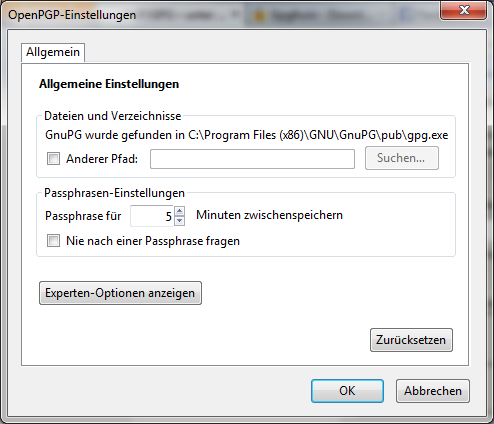
Before creating a key pair, we check whether everything went well during the installation, i.e., whether Enigmail found our Gpg4win from the first step. To do this, click „OpenPGP“ at the top and then „Settings.“.
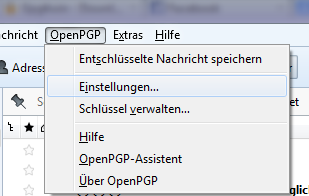 If it now says that GnuPG has been found, everything is okay.
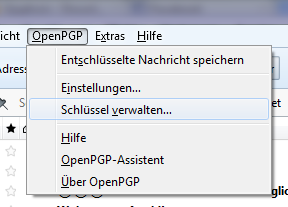
Next, go to the keys, click on „OpenPGP“ again, but this time on „Manage keys“.
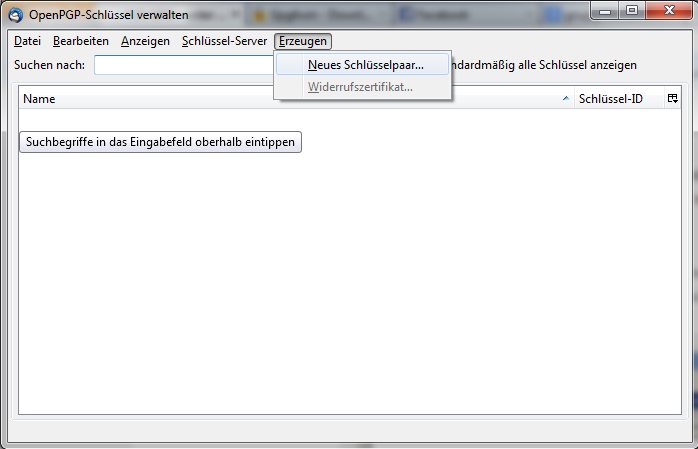
In the next dialog, click on „Generate“ and „New key pair…“.
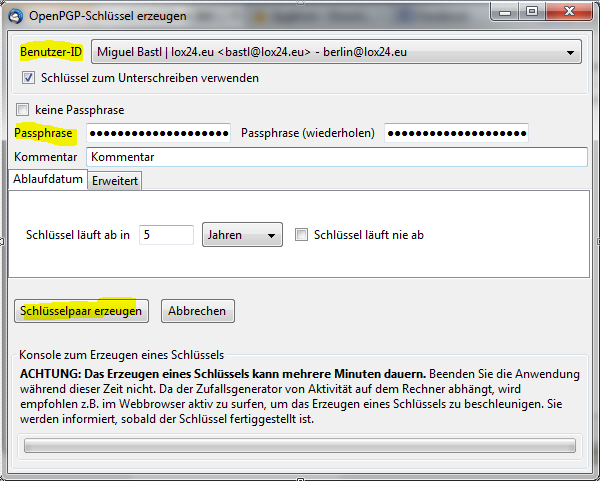
So now it gets exciting. First of all, choose the email address (if you have more than one) for which you will create the key pair. Then you need to come up with a password. It is crucial to choose a good password. I recommend choosing a phrase; you can usually remember it quite well and it is long enough, e.g. „I was enrolled in school in Berlin in 1991“. But beware, there is no function for forgotten passwords, so be sure to remember it! Next, click on „Create key pair“.
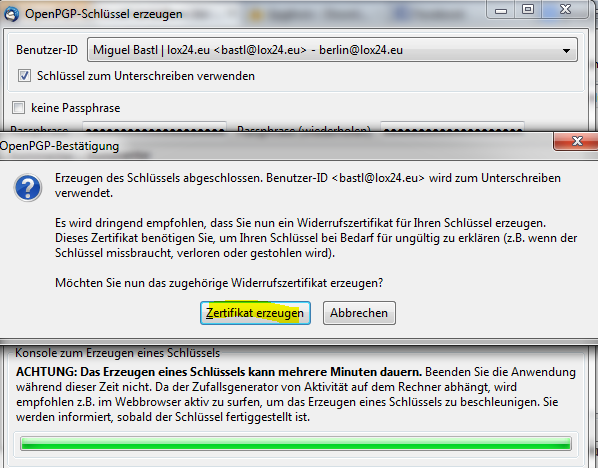
Next you will be asked if you want to create a password certificate. You need it in case your key gets lost so that you can declare it invalid. Otherwise, people could send you confidential information because you think everything is encrypted, but a third party could have your key. Please save this certificate on a CD or USB in a safe place. Dropbox is definitely not a safe place ;) You will now be asked for your password for the first time.
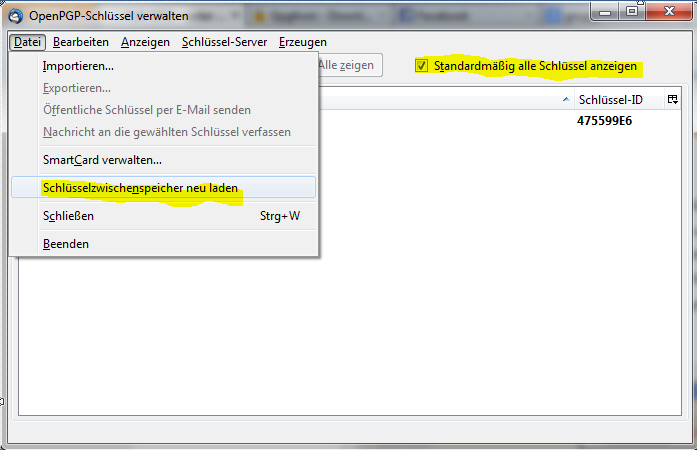
Now click on „Show all keys by default“ and then under „File“ click on „Reload key store“.
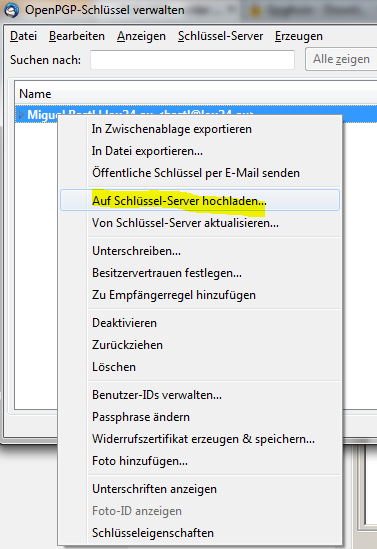
Now click the „Key“ button on the right and select „Upload to Key Server“. This will make your public key public. It will be uploaded to a server on the internet, then other people can automatically find the key and send you encrypted emails (even strangers). You can also click “Copy to clipboard” and send the key to your friends right away.
Send encrypted emails
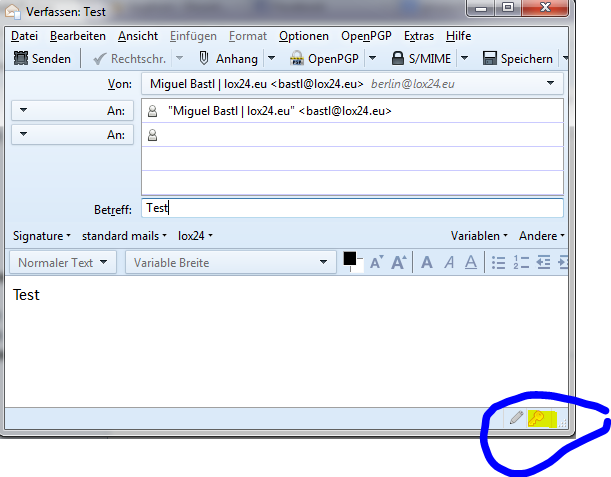
If you want to encrypt an email now, simply click the key in the bottom right corner. You can also click the pen to sign the email, and the recipient will know that it wasn’t sent to them by anyone else but you (or anyone who knows your password).
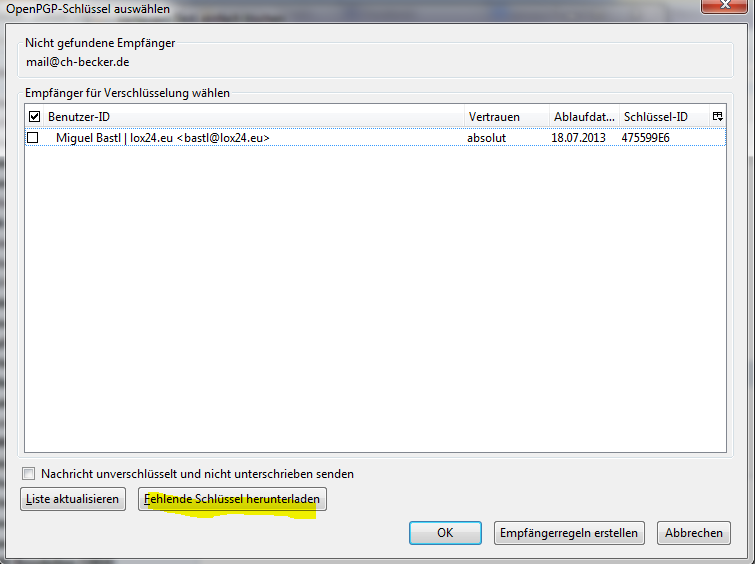
If you haven’t sent an encrypted email to this recipient yet, i.e. you don’t know their public key, then in the next step, download their key from a public server once only. If you can’t find their key, then send them this page so that they can finally encrypt their emails. If you find multiple matches, be sure to select the correct email address and, in case of doubt, use the latest key.
That's it! If you receive an encrypted email yourself, you will be asked for your password to decrypt it: